A screenshot annotation tool for macOS
Shoot, mark up, hand off.
Three seconds.
The instant you capture, the annotation window is open and the arrow tool is already selected. When you're done, grab the tab at the bottom edge and drag straight into Slack, Finder, or your terminal. Screen recording, GIFs, OCR — all on board. Yet settings stay minimal, network traffic stays at zero, and it's free for 14 days — then a one-time $9.99 to keep saving, copying, and sharing what you shoot.

macOS 14 or later · Free 14 days, then $9.99 once · No account, no cloud, zero network calls.
The real thing
This is what three seconds looks like.
Three promises
Rich features, kept light.
1Fast.
Hotkey to capture, capture to canvas: latency is written into the spec as millisecond budgets, and nothing that breaks them ships. Speed is a feature.
2Rich, but light.
Screen recording, GIFs, OCR, capture history — all included. But each feature gets only a handful of settings: great defaults, three seconds to use, no forest of dials.
3Nothing leaves.
Zero network calls. Your screenshots and recordings never leave this Mac. No account, no cloud. Free 14 days, then $9.99 once — no subscription, ever.
Mark up
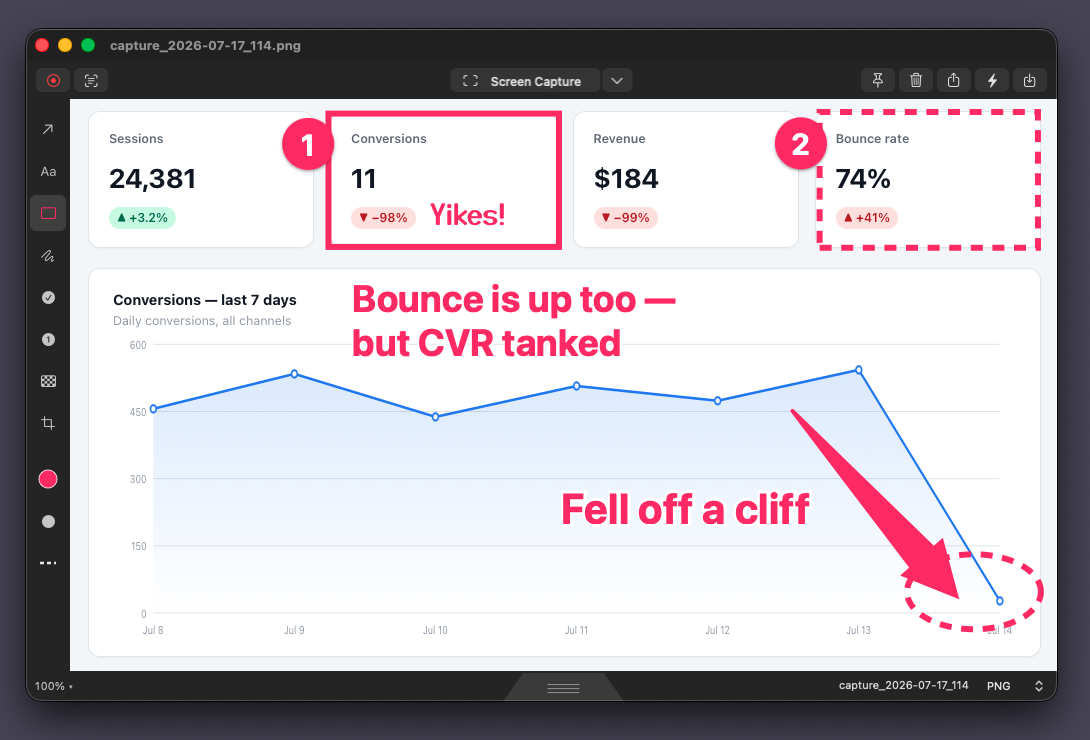
By the time you look, the arrow is in your hand.
The canvas opens the moment the capture lands, with the arrow tool already selected. No save dialog, no "choose a mode" in between.
The arrow is born thin where you start dragging and swells toward the point it's making — one filled shape, not a line wearing a hat. Pink, obviously.
Nine colors and a picker for any other — the last eight you chose stay one click away.
Every annotation is an object: reselect, move, delete at will, with practically unlimited undo. Draw without fear.
Hand off
Grab the tab, drop it into Slack.
When you're done drawing, just drag the tab at the bottom edge. Slack, Mail, Finder, your terminal — it lands as a real image file.
Zero dialogs along the way. The whole export–save–attach ritual simply disappears.
Prefer the clipboard? ⌘⇧C copies and closes in one shot.
Shoot
Same region, again.
It remembers your last selection and re-shoots it in one move. On days you capture the same screen over and over — docs, bug reports — nothing saves more time.
Window capture is one key, too. Stop tracing pixel edges by hand.
Record
When it moves, show it moving.
Screen recording, three ways: full screen, area, or window. Click highlights toggle with one tap.
Export is a footer switch between MP4 and GIF. Quality is one dropdown: High, Medium, Low — pick "Medium" and forget it; drop to "Low" when you need a light file for Slack. No forest of dials.
Mark up video
Draw on the recording, too.
The same arrows, shapes, pen, stamps, numbers, and text you use on stills — now on your recordings. Draw them straight onto the video; on export, everything bakes into the file.
Trim used to mean cropping the ends. Now it cuts the middle, too — pick a stretch you don't want and Cut it out. The awkward pause, the wrong window, the step you fumbled and redid: gone in one cut, without re-recording.
Each annotation carries its own start and end time, so an arrow can appear only when it's needed. And a swipe of Pixelate covers names, addresses, or notifications caught in the frame — before the file ever leaves your Mac.
Shoot
Pin it to the screen.
Float any capture on top of everything and work with it side by side — design diffs, or following steps while you work.
Hand off
Text as text.
OCR pulls the text out of any capture. Error messages, table contents — hand them off as paste-able characters, not pixels.
Catch a JSON response on screen and it lands on your clipboard already indented. No settings, no button — if it parses, it's reformatted; if it doesn't, you get the raw text.
Processed on-device (Apple's Vision framework). Nothing is ever sent anywhere. English and Japanese first.
Hand off
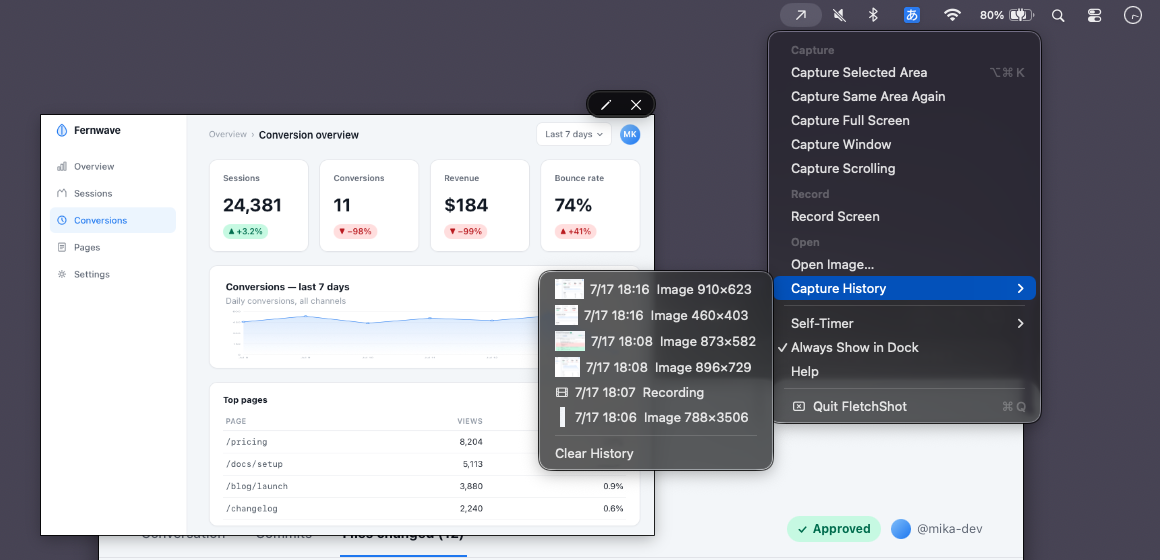
That one from a minute ago.
Capture history, 50 items. "Can you send that again?" takes three seconds.
Stored on this Mac only. Nothing goes to a cloud.
And more
Small things, all serving the three seconds.
Long pages, one image.
You scroll, we stitch. No extra permission required.
Your images, too.
Drop an image onto the canvas or the Dock icon and start drawing — not just what you capture.
Self-timer
Menus and hover states — the things that vanish when you try to shoot them — stay in frame.
Filename, your way
Templates with {date} {time} {index} — set once, name every capture the way your team files them.
Numbered stamps
Drop 1→2→3 and the walkthrough writes itself. Formats: 1/A/a/i.
Pixelate
One swipe over anything you'd rather not share — on stills or in a recording.
Highlighter, shapes, text
The rest of the toolbar. Each stays in one row until the window shrinks — then overflow tucks itself into a menu.
Shortcuts integration
Hand annotated images and recordings to your own Shortcuts — rename, sort, route.
Hotkey ⌥⌘4
The default your hands already know. Changeable, of course.
Text, four fonts
System, serif, marker, or handwritten round — the whole feel of a callout in a tap.
Arrows, three styles
Filled, bordered, or outline only — press and hold the arrow button. No new button, no new setting.
The deal
Free for 14 days. Then pay once.
- Download free from the Mac App Store — the 14-day trial starts inside the app, whenever you tap it
- Everything works during the trial: capture, annotate, record, OCR, all of it
- After 14 days, capturing and drawing stay free forever; saving, copying, and sharing ask for the one-time $9.99 unlock
- No subscription, no account, no auto-renewal
- Native Apple Silicon, macOS 14+ · Zero network calls — your screenshots never leave your Mac
FAQ
Questions, answered.
When can I use it?
Right now. FletchShot is on the Mac App Store — free to download, free to try for 14 days, then a one-time unlock. No account. If you need a heads-up when the next major version lands, there's an optional email box at the bottom of this FAQ.
Is there a free trial?
Yes — 14 days, everything on. Download the app for free, tap "Start 14-day trial" once inside the app, and saving, copying, and sharing work exactly like the paid version until the trial ends. Nothing is charged during the trial (Apple takes payment only when you tap "Unlock" at $9.99). After the 14 days, capturing and drawing stay free forever; the export routes — file save, clipboard copy, drag-away tab, share sheet — are what ask you to unlock. It's a one-time purchase, so there's nothing to auto-renew.
How much will it cost?
Free to download, free for a 14-day trial. After that, a one-time $9.99 unlock keeps saving, copying, and sharing available forever. No subscription. Family Sharing is off, so the unlock is per Apple ID. Major upgrades may someday be paid, but the version you buy keeps working.
Can I switch from Skitch?
That's exactly what it's built for. The tapered arrow's feel, the shot-to-annotation immediacy, and the drag-away tab were measured against a real copy of Skitch 2.9 and rebuilt to match. The default hotkey is ⌥⌘4, too. "A Skitch hand can use it without relearning anything" is our most important acceptance test.
Why zero network calls?
Because screenshots are full of secrets. FletchShot's spec pins networking at zero: OCR runs on-device, and neither screenshots nor recordings ever leave your Mac.
How is this different from CleanShot X?
CleanShot X is a genuinely excellent pro tool with 50+ features and deep settings. FletchShot goes the other way: it's built around doing "shoot → arrow → hand off" thirty times a day, three seconds each. We carry the best-loved features in light versions, but we don't compete on settings depth — and we deliberately have no cloud and no accounts.
What does it run on?
macOS 14 or later, native on Apple Silicon. Distributed through the Mac App Store (App Sandbox).
Just want to hear about the next update?
Leave your email below and you'll get one message when a major version ships. That's all — no newsletter, no sharing.
Get started
Make every screenshot a three-second job.
macOS 14 or later · Free 14 days, then $9.99 once.